The "Equipment" menu serves as a platform to manage and track contractor equipment items, usually on a best-pricing basis. This article explores the range of activities that can be performed in this window.
This is one of several windows that can be pre-filtered, to limit what data is loaded when exploring equipment. For example, if you only want to load active equipment for a given company:
Click the filter icon at Equipment > Equipment.
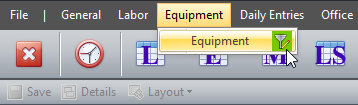
Click the "Add" dropdown and select the "Company" filter, then load the satisfying records. The "Only active records" checkbox is flagged by default to only load active records. Uncheck it if you'd like to load inactive records as well.

Let's explore some other features in this window.
Adding Equipment
To add an equipment click Equipment > Equipment.
Click append (+) to add a new row, then enter the details for each record. You can also use the buttons to the right of the append button to modify or delete the selected record(s).

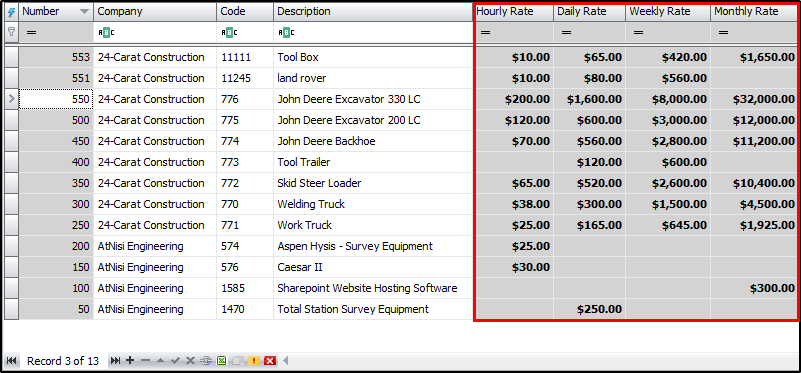
After adding a new row, you can fill the details for each record in the grid or in the tabs below the grid. You will observe that some columns in the grid are grayed out, as they're read-only and cannot be modified in the grid, as the data feeds from different menus or tabs in the software. In this example, the rates are populated from the "Rates" tab.
After adding and editing records, click on “Save” to accept changes as the data is not automatically saved after records are added, modified or deleted.
Upon saving, a Sys # (distinct system-generated number) will be assigned to each item.
Data Grid
One of the advantages to making changes in the grid is that you can apply the same change to multiple records simultaneously. After selecting the desired records, make the change in one of the selected cells then press tab and that change will take effect for all selected rows in that column.
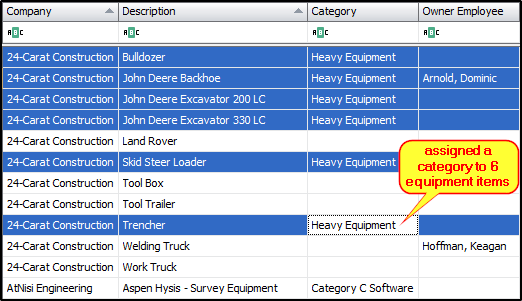
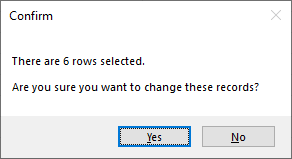
You will be prompted to confirm changes that affect more than five (5) records at a time.
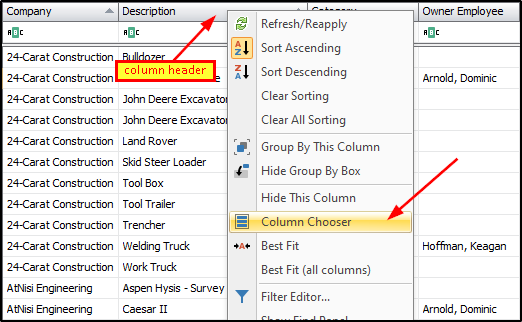
Some columns in the grid may not be visible, but can be retrieved from the column chooser, which basically houses the hidden columns. To retrieve a hidden column, right-click a column header and select "Column Chooser" from the context menu.
This will open the "Customization" form with the list of available columns for that screen.
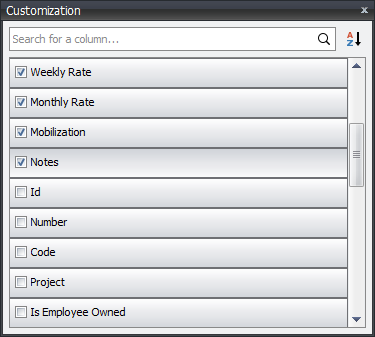
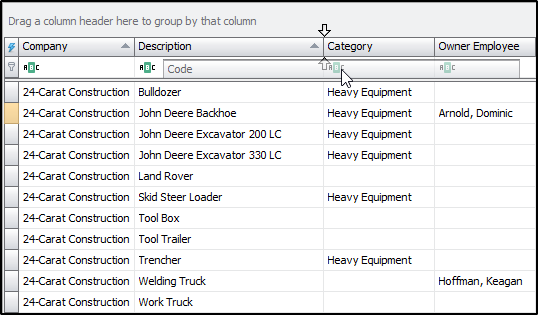
From there, drag and place the desired column from the form, to the grid. The two arrows facing each other indicate where the column header will be placed in the grid. In this example, the code column is being placed between the description and the category columns. See the data grids article for more in-depth details on data grids.
The tabs below the grid have a wide array of cells to add supplementary details to a record, but only allow modifying one record at a time. In some instances, if multiple records are selected in the grid then the tabs will be grayed out, thus, unmodifiable. For each cell, you can either type the details in the textbox, or select an available item from the dropdown list. Let's dive a little further in each tab.
Overview Tab
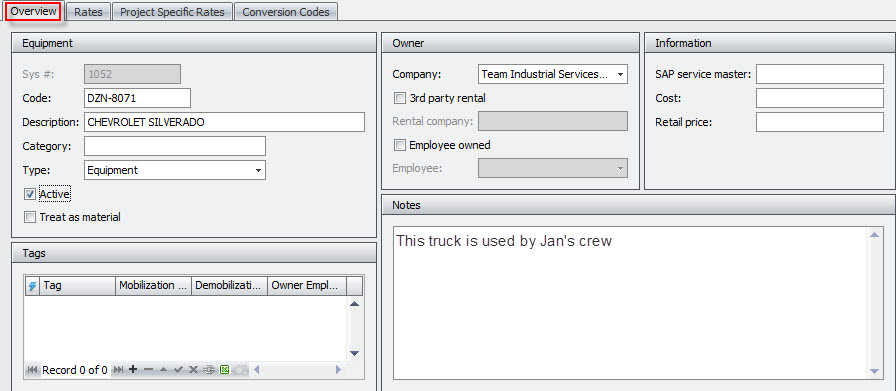
The “Overview” tab has a section for "Equipment" and one for "Owner". The "Equipment" section contains distinct details about each equipment item. It includes a Sys # (read-only, system-generated number) and/or a code (number assigned) for each equipment. The description field is used to name each equipment item. Additionally, the category and type fields are used to group equipment into different classes, for reporting purposes. This section also has two (2) checkboxes that lets the user flag the equipment as active or inactive, and to optionally tick treat as material where applicable. When "Treat as material" is flagged, the affiliated charges for that equipment will show up in the "Materials" section/column on reports.
The "Equipment" section also has a box for cost information for each equipment item. The SAP service master is used to link an equipment item to a set of rates in SAP. The Cost and Retail Price fields are sometimes used when wanting to compare the cost of renting over time to the cost of purchase.
The “Notes” tab, though seldomly used, lets you add notes for each equipment.
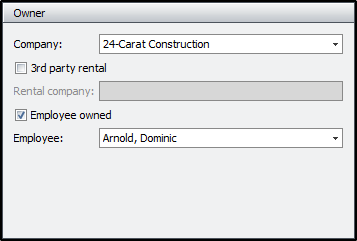
The "Owner" section lets you decide if the equipment is company-owned, a third-party rental, or employee-owned. If it is owned by a contractor, use the company dropdown to assign it to that contractor. If it is a third-party rental, first select the contractor, then tick the 3rd party rental checkbox and add the details for the rental company. If it is owned by one of the contractor's employees, first select the contractor, then tick the employee owned checkbox, and then assign it to the employee. The owner assignment will determine what cost source the affiliated charges for that equipment will show up as. Since this example is employee-owned, the charges will show up in the "Labor" section/column on reports and will be grouped with other charges for Dominic Arnold.
Rates Tab
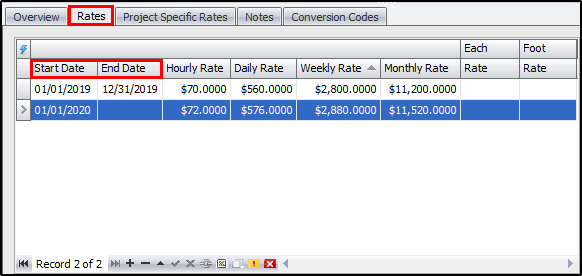
The “Rates” tab handles periodic rates (hourly, daily, weekly, etc.) and unit-based rates (each, foot, etc.) for each item. While most of the fields here are self-explanatory, it is import to note the impact of the start date and end date fields, as they define when rates are in effect.
- If the start date and end date fields are blank (usually there is only a single row with rates), then all daily entries for that equipment, will use the prescribed rates, since they're not bounded to specified dates.
- When a start date is defined, all daily entries before that date will have zero (0) rates, unless a new row is added for that date range or the current date range is expanded to facilitate said date range. In this example, since the earliest start date is 01/01/2019, all daily entries prior to that date will have zero (0) rates.
- Similarly, when an end date is defined, all daily entries after that date will have zero (0) rates, unless a new row is added for future date ranges or the current date range is expanded to facilitate those records. To illustrate, if an end date was set in the second row for 12/31/2020, all daily entries after that date would have zero (0) rates.
- This screenshot has the end date in the second row deliberately left blank. In such case, all daily entries after 01/01/2020 will use the prescribed rate, until an end date is defined.
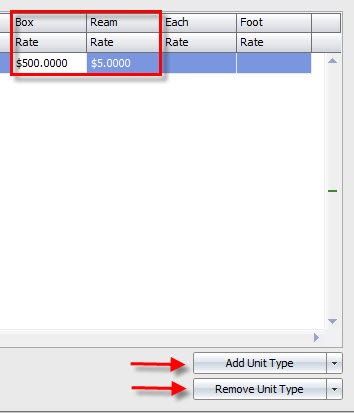
To the lower right of the rates are fields there are buttons to add unit rates and remove unit rates. Click "Add Unit Rate" to add a new unit rate and fill the details for unit and rate. This example has 2 fields added, one for Box and another for Ream. Conversely, use the "Remove Unit Rate" dropdown to delete a newly added unit rate. This button is only available when new unit rate fields are added.
Click HERE for a Training Video on this subject
Project Specific Rates Tab
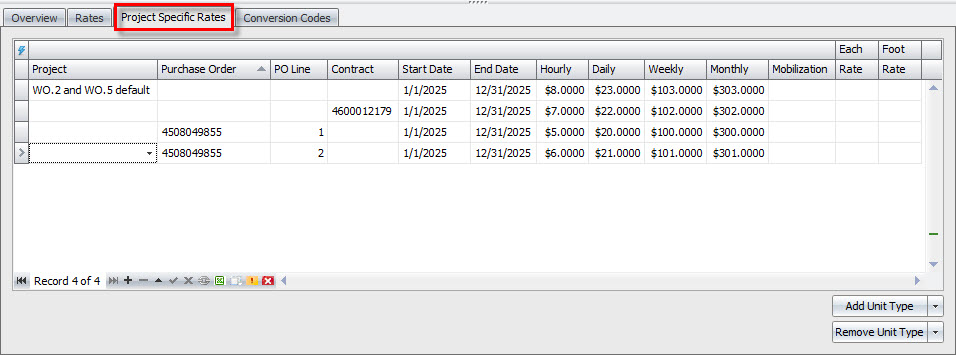
Project Specific Rates are generally agreed rates for specific projects and have similar principles for dates, like the charge rates. Once the project, purchase order, purchase order line number or contract are specified, the associated daily entries will use the assigned rates. You can set the rate for any combination of the available options. When only the project is filled, any WO that is assigned to that project is matched and used. When both PO and project are filled, if a PO has several work orders and one (or several) of the work orders is tied to a different project, then anything that does NOT match BOTH criteria (PO and project) will use the charge rate for the classification. Therefore, if you want the rate to apply to all work done on that PO, remove the Project so that only the PO is filled. Contracts may also be used to specify rates. Often times a single contract number could be assigned to multiple POs. By assigning rates to the contract number, subsequent POs that are issued to the contract, will be assigned the contract rates.
Conversion CodesTab
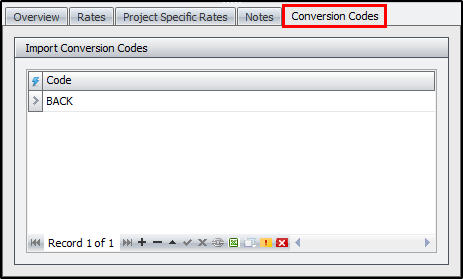
The “Conversion Codes” tab handles codes that can be used as a shortcut for the selected equipment on daily entry imports, etc. The codes can be alphabetic, numeric, or alpha-numeric, and each equipment can have more than one conversion code.
Importing Equipment Items
Equipment items can also be imported into CT3. Please be vigilant as this option can be easily confused with importing daily entry equipment timesheets.
To import equipment items click on Tools > Import > Equipment Items.

You can add a new preset if none is established for that company or edit an already established preset. You can also remove, duplicate, import or export presets if necessary.

The “Data Source” section lets you locate the directory path for your import file by clicking on the ellipsis. You can also choose which sheet number to import from and set the number of rows to skip to accommodate headers, etc. Upon saving the import preset, it displays the assigned file type in the title and allows update preset location to a file or folder for future imports.

The “Options” section affects how current and future imports affect each other.

The “Fields” section handles the underlying details of the import. Here you add the desired fields to import and assign the position to correlate with the column in your spreadsheet. Click the “Add field” dropdown to add a field and the remove button (red button to the right) to get rid of a field.
You can also set a different font case for each field.

Once the preset is prepared, click “OK” to save. From there click “Import” to import the data then review and confirm the import.
Preferred Rates
Click here to download instructions in Word.
What are Equipment Preferred Rates? This is the manual process that was formerly referred to as “equipment reconciliation.” Any contractor that offered more than an hourly or daily rental rates would need their equipment reconciled to the best rate available. Now, by storing preferred rate rules by company or equipment item, this process has been completely automated.
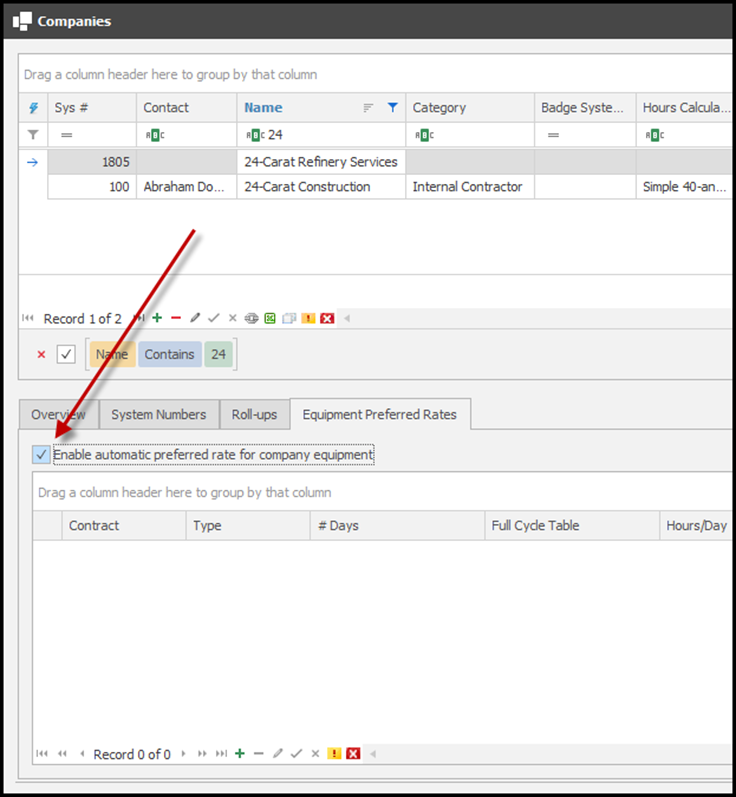
To enable this feature, you will start at General>Companies and select the company you want to enable preferred rates for. In the Equipment Preferred Rates tab you will check the box to enable. This will allow preferred rates to calculate for every piece of equipment assigned to that company.
Another commonly used term in this release is, cycle. This refers to the period of time in which the equipment is used and preferred rates are calculated (28-day rolling, monthly [January]).
Creating a Preferred Rate Rule (Companies)
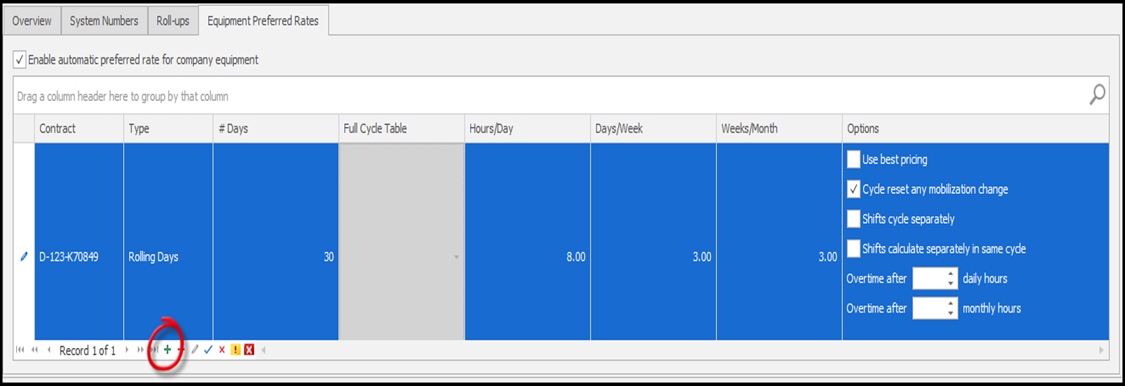
If the entire equipment list follows the same rate structure, it can be setup, one time, in the Companies table. Example: Every item meets the daily rate at 8 hours of use, or weekly rates are met at 3 days of use, or monthly rates are applied at 3 weeks of use. To add a preferred rate rule on the company level, click the plus sign (+). You can assign a contract if needed, then choose your cycle, calendar or rolling days. When choosing rolling days, enter the number of days in the cycle. Next set the number of hours that can be charged before the rate shifts to daily and the same for days to weeks and weeks to months. There are also additional Options to utilize when setting up your preferred rates based on contract information.
Options
The Use best pricing option changes the underlying preferred rates calculation to look at the rates on the equipment item to determine if a unit should be upgraded based on the ratios (hours/day, etc.) or table, but only if it is cheaper than than that unit x unit rate (hours x hourly rate, etc.).
The Cycle reset any mobizilation change makes it so that if a piece of equipment mobilizes a new cycle should be started the existing cycle should be early.
The Shifts cycle separately option makes it so that if reporting the same piece of equipment on different shifts, each shift will be treated as though it is a separate piece of equipment for cycling. This option disables Shifts calculate separately in same cycle.
The Shifts calculate separately in same cycle makes it so that if reporting the same piece of equipment on different shifts, each shift will create a sub-cycle with in the cycle for the given piece of equipment. This option disables Shifts cycle separately option.
If neither shift option is selected, then the night override rates are not used and any reported usage is comined for that date by unit, so a reported 8 hour day shift and 8 hour night shift will be treated as 16 hours for that date.
There are two options related to overtime, both of which use the new overtime rate on the Equipment Item Screen. The first applies in the case the hours reported on a date exceed the threshold the user sets and anything beyond that will use the Overtime Hourly rate for that item. The other option is for overtime after a threshold of monthly hours. In this a total is kept of the hours reported in cycle and if the threshold is reach all hours going forward will use the Overtime Hourly rate.
Overtime hours are an additional cost on top of the preferred rates that are calculated.
Creating a Preferred Rate Rule (Equipment)
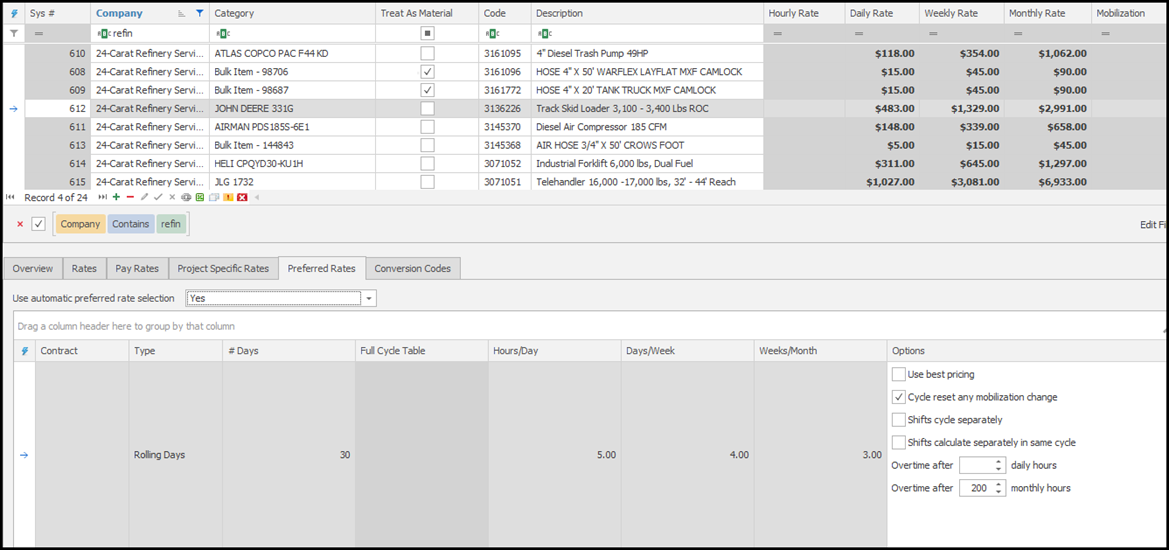
In cases where the rate structure differs from item to item, the rule can be set on each item in the Equipment Items. In Equipment>Equipment Items, find the equipment item in the list and click on the Preferred Rates tab. By default, the items will be listed as Company Setting in the “Use automatic preferred rate selection” line. You can edit that selection to NO for material items that would not have preferred rates. Or you can select YES if this rate structure differs from the blanket company assignment that was already created. In the same process as above you will click the plus sign (+) and add a new preferred rate rule and assign the correct numbers in the fields for that item. In this case the item is billed at overtime rate after 200 hours in a month, so I have included that in this rule.
In the Rates tab you will find some new rate options that include overtime, override rates, and Is Tracking Hourly Rate. The tracking hourly rate is used to indicate that a piece of equipment is reported in hours for tracking purposes but contractually does not use hours and should always be upgraded to days or a greater unit.
Import Review Screen/Analysis Screen Updates
When importing an equipment timesheet, you will find all new fields for Preferred Rates in the import review screen. In this example the reported hours are displayed and when a preferred rate rule is applied it will display in that column. At 5 hours this item rolls to a daily rate.

If you import a timesheet that includes weeks of daily entries, the software will calculate that on import. Showing the preferred monthly rate is applied, and is distributed by usage in each line so that distrubition of the cost is applied appropriately. Also there were more than 200 hours reported, so the overtime rate was applied for those hours.
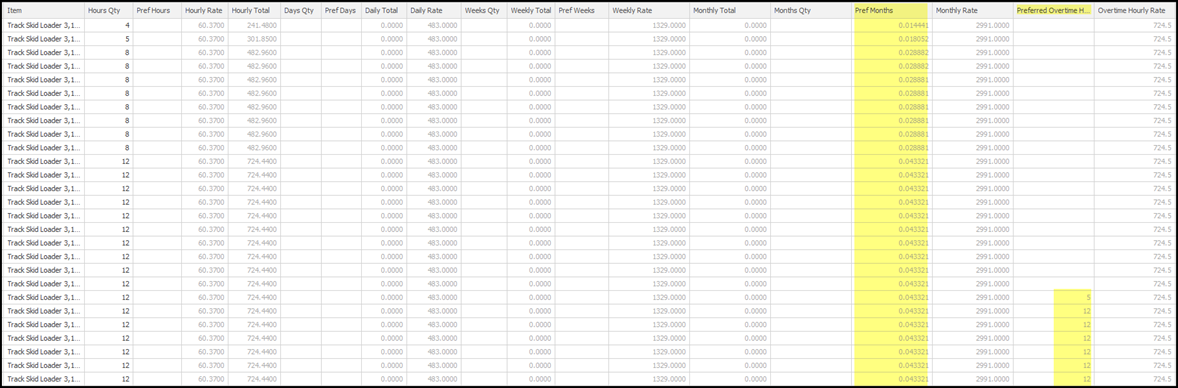
The calculation for preferred rates looks at the rates for a piece of equipment and after trying to upgrade a unit (hours to days, etc.) and if the upgraded unit does not have a rate it will go the the next smallest unit.
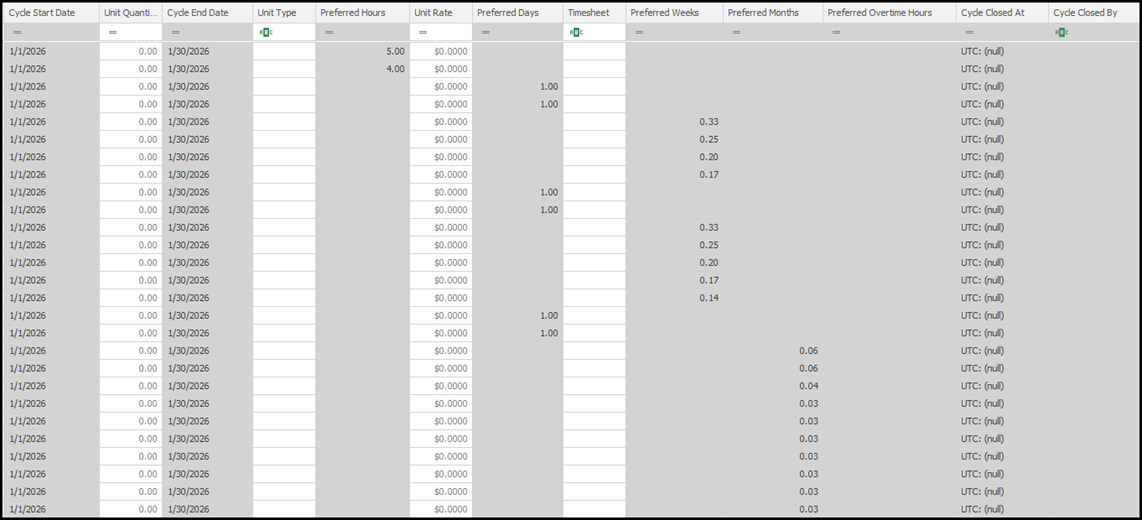
Changes and updates are also made in real time in the Analysis>Daily Entries>Equipment screen. These new fields are tacked on the end of the screen (seen on next page).
As new records are added the software will lookup existing records and make any necessary adjustments to meet the boundaries of the rule assigned. The software will also look up cycle dates and add new or correct previous cycle dates, as long as the cycle is not closed.
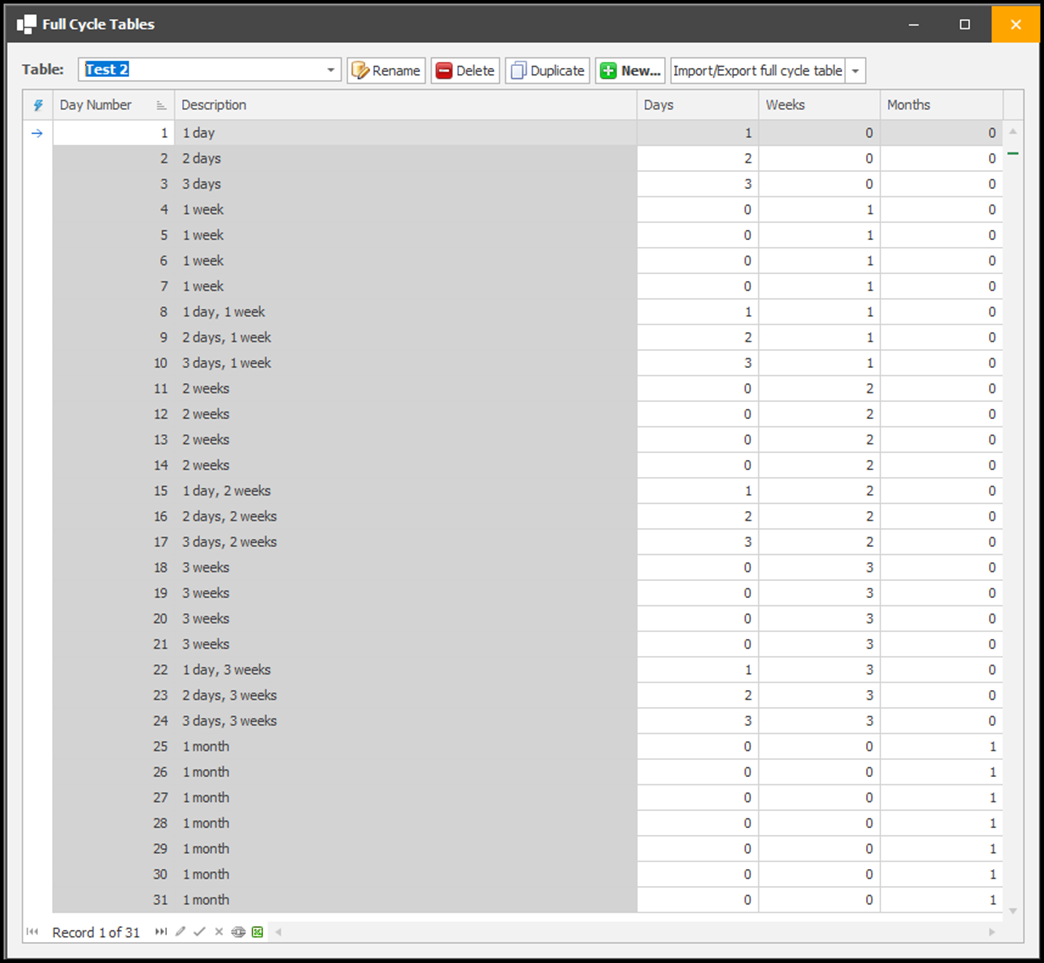
Full Cycle Table
In Equipment>Full Cycle Table you can create a table of usage to assign a company or equipment item. In some cases, a contract may define the exact usage conversions by days of use. You can replicate that here. When in use on the rule set on the company or equipment item this replaces the need for the ratio fields (hours/day, etc.)
Dashboard
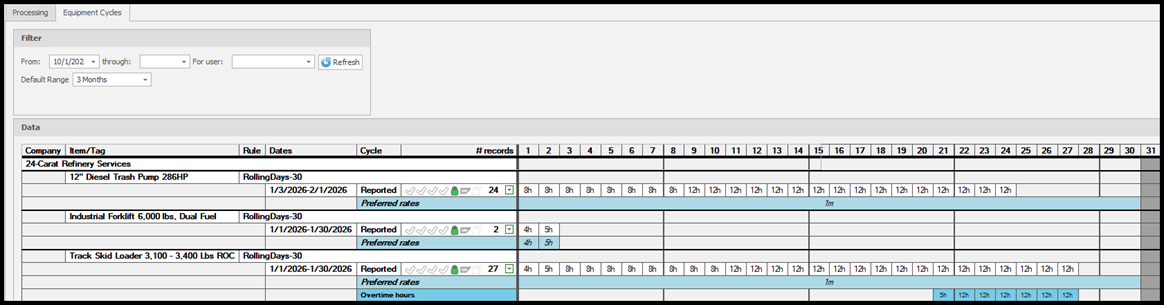
In Dashboard>Equipment Cycles all items that are subject to a preferred rate rule will display here. This dashboard is intended to provide a visual of all charges, the cycle dates, what was originally reported and the preferred rate that was applied. Approval status is available with hovering tool tips on the icons next to the cycle and eventually you will be able to package records from this screen as well.
For the status icons an empty icon denotes that no records are in that status, a partially filled icon shows some records have passed that status, and a fully filled icon mean all records have passed that status. These status denoted by these icons are:
- Auidited
- Verified
- Field Approved
- Approved
- Cycle Closed
- Service Entry (if used by the site)
- Billing Package
Dashboard actions
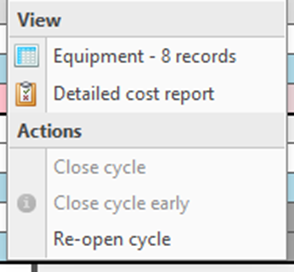
Similar to the processing dashboard there are several actions a user can do on a cycle by clicking on the down arrow button on a cycle (next to the # records). A user can view the records in the cycle in an anlysis screen or a Detailed Cost Report of those records. Additionally a user can close a close a cycle or close a cycle early. When a cycle is closed the equipment entries in that cycle will be locked and no further calculation will be performed and the entries can no longer be editted.
Closing the cycle will treat the use the cycle rule to determine the end of the cycle, and this operation should be done once records have been approved. Closing the cycle early by default sets the Cycle end date to the date of the last record unless specified otherwise by the user.
Reports
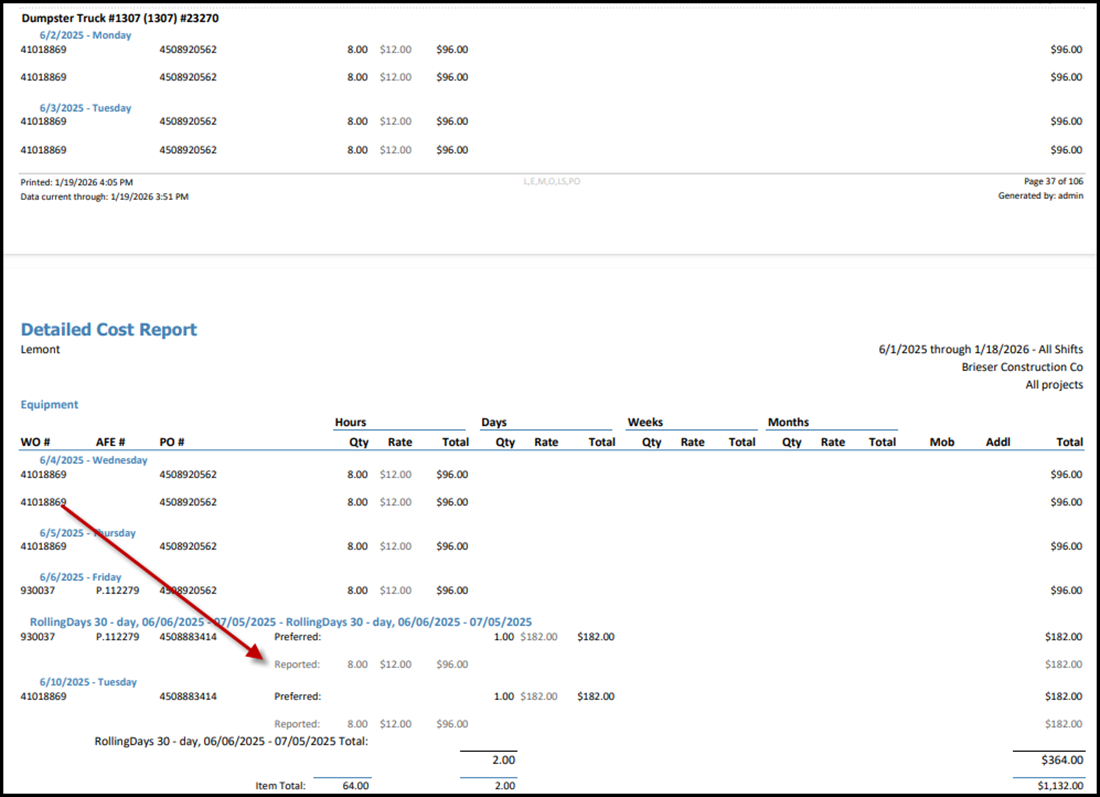
The Detailed Cost Report has been modified to reflect this new information as well. What will actually be charged remains in black text, reported or preferred. However reported data that is converted to preferred rates is shown in gray.
Additionally the Summary Cost Report has new columns for use related to equipment cycles and a new data column set has been created to compare reported equipment usage against the preferred rates.